Integrating WasItAIGenerated AI Text Detection REST API
In this blog, we'll learn how to integrate the WasItAIGenerated AI Text Detection REST API into a Java application. We will create an account, get the API key, send text using a POST request, and receive the detection result as JSON.
Prerequisites
- Java / Spring Boot application
- Basic Java and REST API knowledge
- WasItAIGenerated account
Step 1: Create an Account
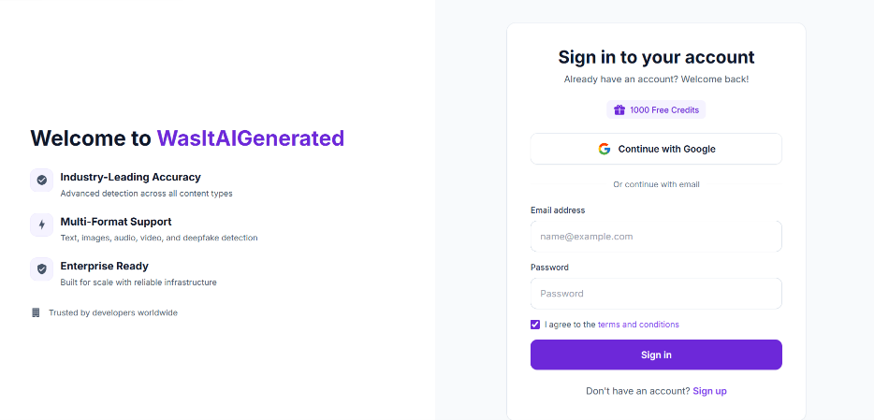
Open https://www.wasitaigenerated.com and create an account using your email address. Verify your email to activate the free credits.
Step 2: Get the API Key
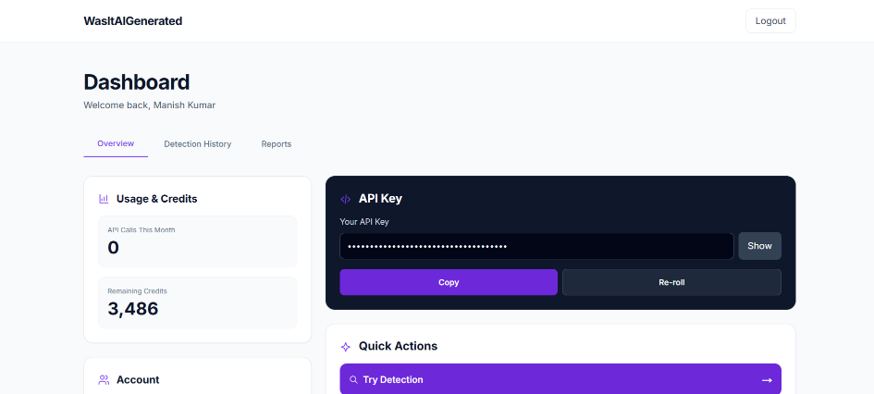
Log in and open the dashboard.
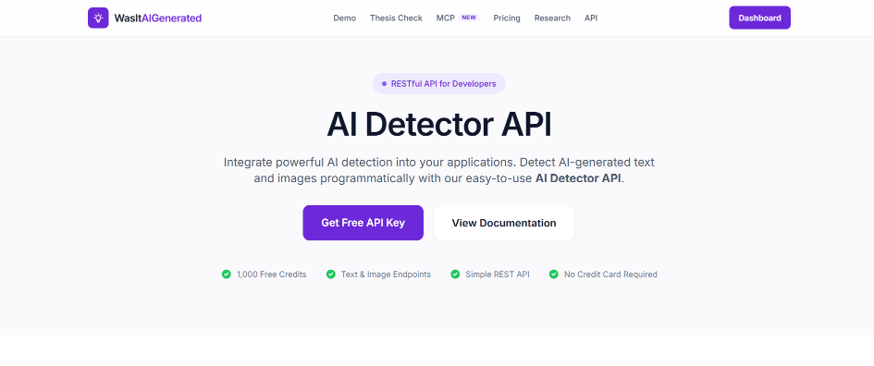
Click to Get Free API Key
Copy the API key generated for your account.
YOUR_API_KEY
Note: Never publish your real API key in GitHub, blogs, screenshots, or frontend code.
Step 3: API Endpoint
POST https://www.wasitaigenerated.com/api/v1/detect/text
Authentication uses a Bearer token.
- Authorization: Bearer YOUR_API_KEY
- Content-Type: application/json
Step 4: JSON Request
{
    "content": "Artificial intelligence is transforming modern applications."
}
Step 5: Java REST API Integration
package com.itwallah.controller;

import java.io.*;
import java.net.HttpURLConnection;
import java.net.URL;
import java.util.HashMap;
import java.util.Map;

import org.springframework.stereotype.Controller;
import com.fasterxml.jackson.databind.ObjectMapper;

@Controller
public class TextDetectionController {

    private static final String API_KEY = "YOUR_API_KEY";
    private static final String API_URL =
        "https://www.wasitaigenerated.com/api/v1/detect/text";

    private String AITextDetection(String content) throws IOException {

        URL url = new URL(API_URL);
        HttpURLConnection conn =
            (HttpURLConnection) url.openConnection();

        conn.setRequestMethod("POST");
        conn.setRequestProperty(
            "Content-Type", "application/json; charset=UTF-8");
        conn.setRequestProperty(
            "Authorization", "Bearer " + API_KEY);
        conn.setDoOutput(true);

        ObjectMapper mapper = new ObjectMapper();

        Map<String, Object> body = new HashMap<>();
        body.put("content", content);

        String jsonBody = mapper.writeValueAsString(body);

        try (OutputStream os = conn.getOutputStream()) {
            os.write(jsonBody.getBytes("UTF-8"));
        }

        int responseCode = conn.getResponseCode();

        BufferedReader reader = new BufferedReader(
            new InputStreamReader(
                responseCode < 300
                    ? conn.getInputStream()
                    : conn.getErrorStream(),
                "UTF-8"));

        StringBuilder response = new StringBuilder();
        String line;

        while ((line = reader.readLine()) != null) {
            response.append(line);
        }

        reader.close();
        conn.disconnect();

        return response.toString();
    }
}
Step 6: Call the API
String textContent =
    "Artificial intelligence is transforming modern applications.";

String responseJson = AITextDetection(textContent);

System.out.println(responseJson);
Step 7: API Response
The API returns JSON containing detection information such as isAI, confidence, score, verdict, patterns, analysis, and sentence-level results.
{
    "isAI": true,
    "confidence": 0.92,
    "score": 92.3,
    "verdict": "ai",
    "patterns": ["AI patterns detected"]
}
Step 8: Test with Postman
- Method: POST
- URL: https://www.wasitaigenerated.com/api/v1/detect/text
Headers:
- Authorization: Bearer YOUR_API_KEY
- Content-Type: application/json
Body → raw → JSON:
{
    "content": "Artificial intelligence is transforming modern applications."
}
Conclusion
The integration is simple: create an account, get the API key, send the text to the REST endpoint using a POST request, and process the returned JSON response.